New Repository Location
(Ctrl + Alt + N) - Displays the Add SVN
Repository dialog. This dialog allows you to define a new repository location.
New Repository Location
(Ctrl + Alt + N) - Displays the Add SVN
Repository dialog. This dialog allows you to define a new repository location.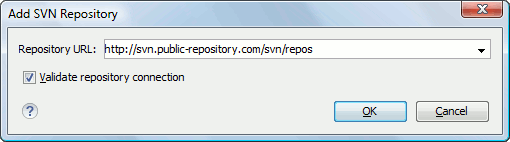
Add SVN Repository
If the Validate repository connection option is selected, the URL connection is validated before being added to the Repositories view.
 Edit Repository Location (Ctrl + Alt + E) -
Context-dependent action that allows you to edit the selected repository location by means
of the Edit SVN Repository dialog. It is active only when a
repository location root is selected.
Edit Repository Location (Ctrl + Alt + E) -
Context-dependent action that allows you to edit the selected repository location by means
of the Edit SVN Repository dialog. It is active only when a
repository location root is selected. Remove Repository Location (Ctrl +
Alt + Shift + R) - Allows you to remove the selected repository
location from the view. It shows you a confirmation dialog before removal. It is active
only when a repository location root is selected.
Remove Repository Location (Ctrl +
Alt + Shift + R) - Allows you to remove the selected repository
location from the view. It shows you a confirmation dialog before removal. It is active
only when a repository location root is selected.
 Refresh - Refreshes the resource selected in the
Repositories view.
Refresh - Refreshes the resource selected in the
Repositories view.  Check Out (Ctrl + Alt + Shift + C) - Allows you to
copy resources from a repository into your local file system. To use this operation, you
must select a repository root location or a folder from a repository, but never a file. If
you don't select anything, you can specify an URL to a folder resource from a repository
in the Check Out dialog that appears when performing this
operation. To read more about this operation, see the section Check out a working copy.
Check Out (Ctrl + Alt + Shift + C) - Allows you to
copy resources from a repository into your local file system. To use this operation, you
must select a repository root location or a folder from a repository, but never a file. If
you don't select anything, you can specify an URL to a folder resource from a repository
in the Check Out dialog that appears when performing this
operation. To read more about this operation, see the section Check out a working copy.-
New Folder - Allows you to create a new folder in the selected repository path.
-
Open - Opens the selected file in the Editor view in read-only mode.
-
Open with - Displays the Open with... dialog to specify the editor in which the selected file will be opened. In case multiple files are selected, only external applications can be used to open the files.
 Copy/Move to (Ctrl +
M) - Copies or moves to a specified location the selected
resource.
Copy/Move to (Ctrl +
M) - Copies or moves to a specified location the selected
resource.- Rename (F2) - Renames the selected resource.
-
Delete
(Delete) - Deletes the selected resource.
- Copy URL Location (Ctrl + Alt + U) - Copies to clipboard the URL location of the selected resource.
-
Branch/Tag - Allows you to create a branch or a tag from the selected folder in the repository. To read more about how to create a branch/tag, please see the Creation and management of Branches/Tags section.
-
 Show History (Ctrl +
H) - Displays the history of the selected resource. At the
start of the operation you can set filtering options.
Show History (Ctrl +
H) - Displays the history of the selected resource. At the
start of the operation you can set filtering options. -
 Show Annotation
(Ctrl + Shift + A) - Complex action that does the
following operations:
Show Annotation
(Ctrl + Shift + A) - Complex action that does the
following operations:- opens the selected resource in the Annotations editor;
- displays corresponding annotations list in the Annotations view;
- displays the history of the selected resource.
 Revision Graph
(Ctrl + Shift + G) - This action allows you to see
the graphical representation of a resource's history. For more details about a resource's
revision graph see the section Revision Graph.
This operation is enabled for any resource selected into the
Repositories view or Working Copy
view.
Revision Graph
(Ctrl + Shift + G) - This action allows you to see
the graphical representation of a resource's history. For more details about a resource's
revision graph see the section Revision Graph.
This operation is enabled for any resource selected into the
Repositories view or Working Copy
view.-
 Show SVN Properties
(Ctrl + Shift + P) - Brings up the Properties view displaying the SVN properties for
the selected resource. This view does not allow adding, editing or removing SVN
properties of a repository resource. These operations are allowed only for working copy
resources.
Show SVN Properties
(Ctrl + Shift + P) - Brings up the Properties view displaying the SVN properties for
the selected resource. This view does not allow adding, editing or removing SVN
properties of a repository resource. These operations are allowed only for working copy
resources. -
 File Information
(Ctrl + I) - provides additional information for
the selected resource. For more details please see the section Information view.
File Information
(Ctrl + I) - provides additional information for
the selected resource. For more details please see the section Information view.